WhatsApp on Apple Watch: installation, use and limitations
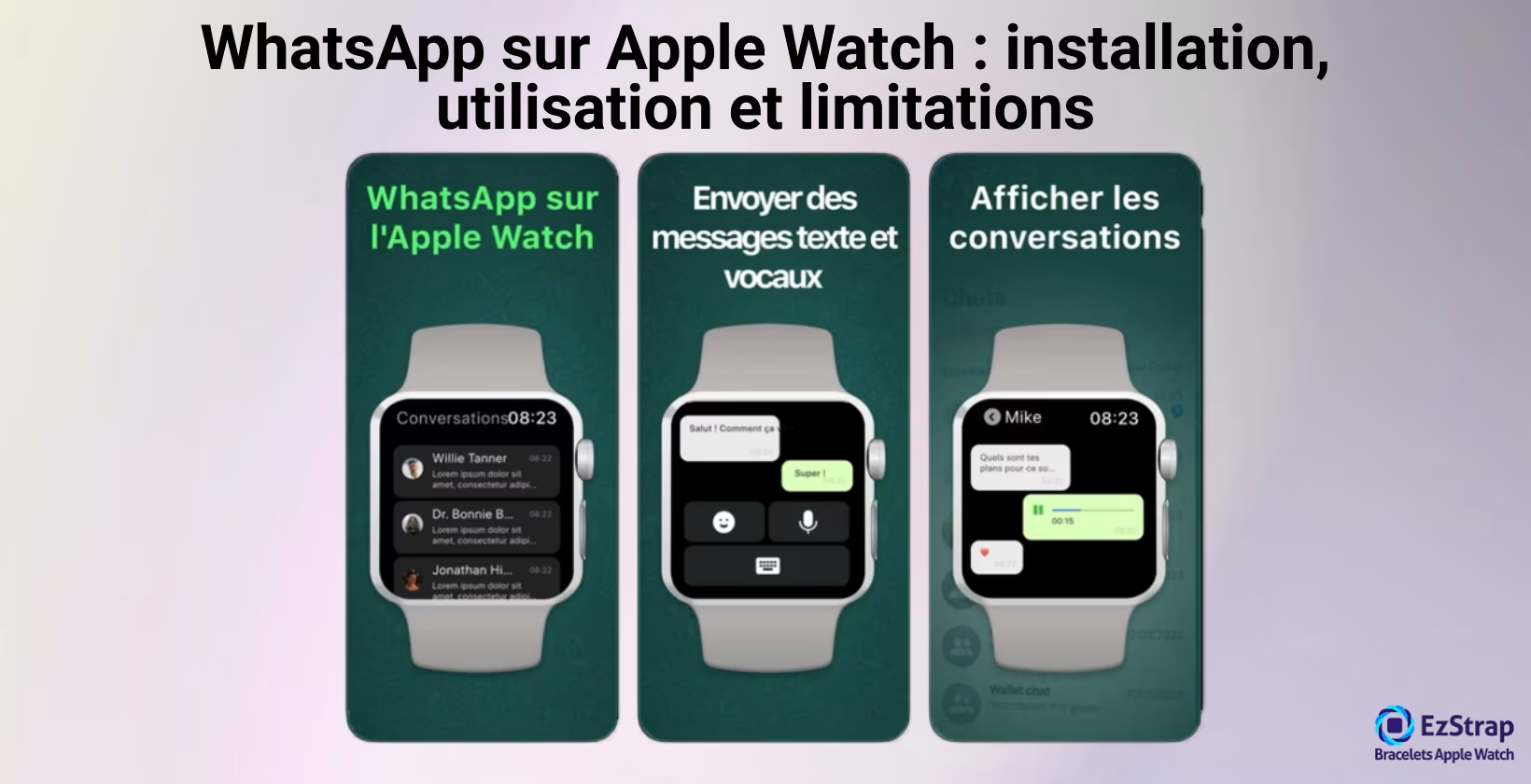
WhatsApp is an instant messaging app created in 2009 and acquired by Meta in 2014. WhatsApp lets users exchange text messages, audio and video calls, voice notes, as well as photos, videos and documents between users connected to the internet. WhatsApp runs on iOS, Android, Windows, macOS and through a web interface, and is among the most widely used communication apps in the world. Using WhatsApp on an Apple Watch can present certain difficulties, because there is no official app developed by WhatsApp for watchOS. Third-party apps are therefore needed if you want to go beyond simply reading the notifications relayed from the iPhone.
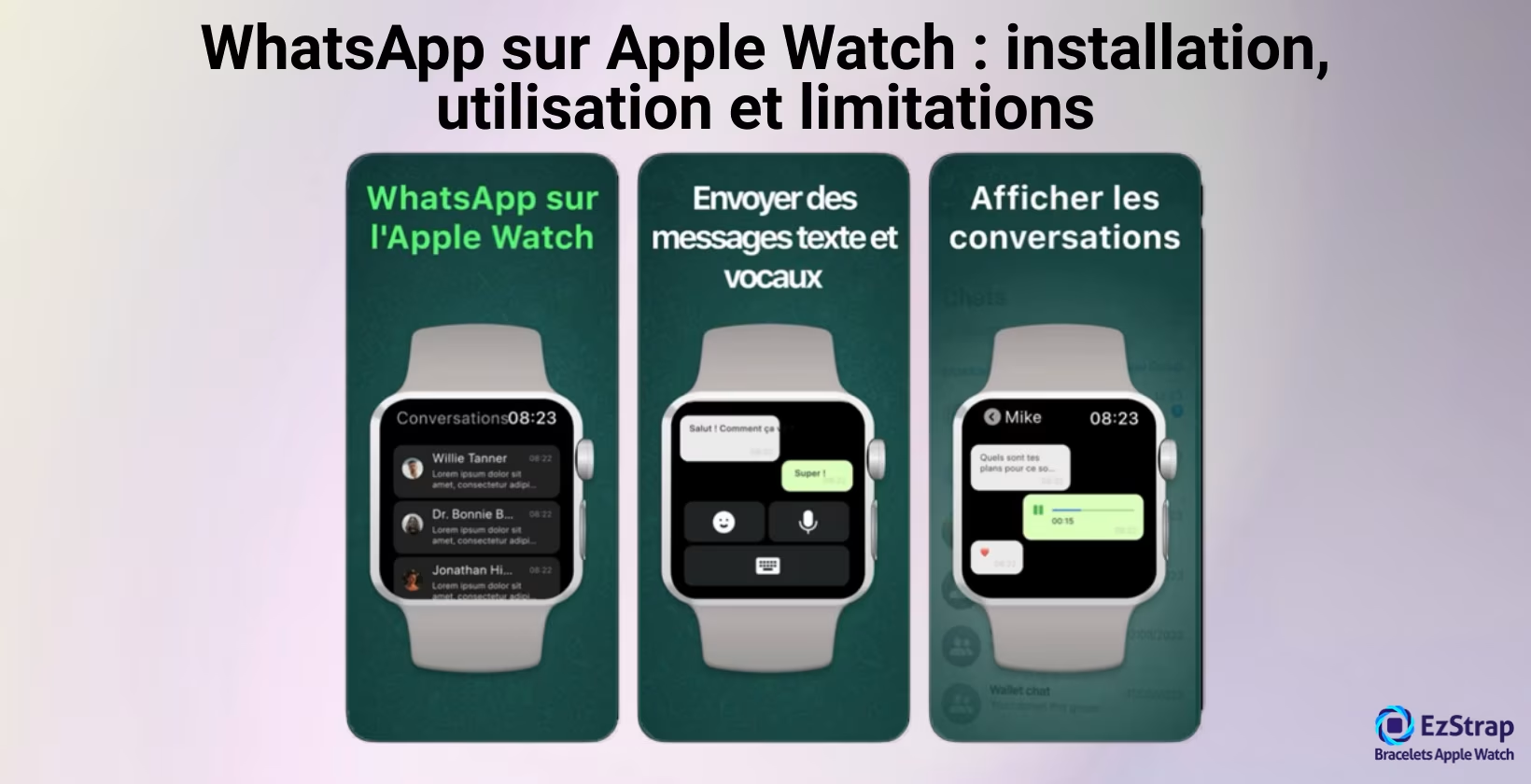
This article describes the steps for installing WhatsApp on an Apple Watch, how to use it and what its limitations are. Free and paid third-party apps are presented, along with notification management and the ability to read and send messages, listen to and record audio, and share your location. WhatsApp calls and working in Cellular mode are covered in dedicated sections. Finally, compatibility across Apple Watch models, the use of WhatsApp Business and the alternatives with Messenger, Snapchat and Instagram are analysed.
Which app should you choose for your needs?
Three third-party apps stand out on the App Store: a question or two is enough to identify the one that matches how you use your watch.
How do you install WhatsApp on the Apple Watch?
As there is no official WhatsApp app for watchOS, you need to use third-party apps to access your WhatsApp conversations and notifications directly on your Apple Watch. These apps are based on WhatsApp Web. Obviously, you must first have WhatsApp on your iPhone, with the iPhone linked to the Apple Watch through Apple's Watch app. Here are the steps to follow to install WhatsApp on your Apple Watch.
- Pick one of the third-party apps to install on the iPhone.
- Install the selected third-party app on the iPhone.
- Make sure the Apple Watch is already paired with the iPhone via the Watch app.
- Open the "My Watch" tab in the Watch app and turn on automatic installation of the third-party app on the Apple Watch.
- Open the app on the watch and follow the instructions displayed (often, a QR code scan in WhatsApp on the iPhone).
- Once linked, access your WhatsApp messages and reply directly on the Apple Watch using the third-party app.
Is there an official WhatsApp app for Apple Watch?
No, there is no official WhatsApp app on Apple Watch. WhatsApp has not developed a native version for watchOS, which rules out direct use on the watch. Users only receive the WhatsApp notifications relayed by the iPhone, but no official interface lets you browse the full conversation history and send messages from the watch.
Only third-party apps such as WatchChat or WatchApp+ offer this possibility, by creating a working extension on the Apple Watch and syncing data through a QR code. This is confirmed by WhatsApp's documentation and Apple's support pages, which state that only iPhone system notifications appear on the watch when there is no native app.
What are the best free and paid third-party WhatsApp apps for Apple Watch?
Here is a list of the best apps available on the App Store for using WhatsApp on your Apple Watch.
-
WatchChat for WhatsApp (Freemium) – XAN Software GmbH & Co. KG
Rating: 4.3 ★ (746 reviews) – Category: Social Networking
Sends and receives text messages, plays voice notes, shows images and videos. Set-up by QR code (WhatsApp Web).
Pros: full interface, features close to the mobile experience, regular updates.
Cons: some advanced features are paid (in-app purchase), interface can be confusing for new users. -
WatchApp+ for WhatsApp (Premium) – Dev: Jennifer Kirby
Rating: 4.5 ★ (3.8k reviews) – Category: Social Networking
Premium app with a subscription (€6.49 / 6 months). Lets you view your chats, send texts and voice notes, and manage your conversations from the watch.
Pros: modern interface, smooth performance, regular support.
Cons: advanced features are paid. -
WatchsApp – Chat for Watch (Freemium) – BEYLER Software
Rating: 4.5 ★ (2.3k reviews) – Social Networking
Lets you find your WhatsApp messages, photos, videos and voice notes directly on the Apple Watch. Set-up by QR code, simple and quick.
Pros: clear interface, good stability, basic features are free.
Cons: fewer advanced features than WatchChat, some options are paid.
These three apps are, at the time of writing, the best options available for using WhatsApp from the Apple Watch. Each offers a different compromise between being free, feature richness and ease of use. The choice therefore depends on the user's priorities: full access with WatchChat, smooth performance with WatchApp+, or a more affordable freemium model with WatchsApp.
How do you connect WhatsApp to your Apple Watch?
Connecting WhatsApp to the Apple Watch relies on synchronisation between the iPhone and the watch, together with a third-party app installed from the App Store to make conversations visible directly on the Apple Watch screen. Here are the steps to follow to connect WhatsApp to your Apple Watch.
- Make sure the Apple Watch is properly paired with the iPhone via Apple's Watch app.
- Open WhatsApp on the iPhone and go to Settings > Linked Devices.
- Open the third-party app installed on the Apple Watch (WatchChat, WatchApp+ or WatchsApp).
- A QR code appears on the Apple Watch.
- Scan this QR code with the iPhone from the "Linked Devices" menu in WhatsApp.
- Wait until the link is confirmed. WhatsApp conversations then sync automatically to the Apple Watch.
Once connected, the Apple Watch can display messages in real time, send quick replies, play audio and use the features specific to the app you are using.
How do you receive WhatsApp notifications on the Apple Watch?
Receiving WhatsApp notifications on the Apple Watch depends on iPhone alerts being mirrored to the watch. To make sure every WhatsApp message appears instantly on your wrist, here is how to set up both devices.
Prerequisites: your Apple Watch must be paired with your iPhone and your WhatsApp notifications must already be turned on on the iPhone.
- Open the Settings app on the iPhone.
- Go to Notifications, then select WhatsApp from the list.
- Turn on Allow Notifications and tick display on the Lock Screen, in Notification Centre and as banners.
- Open the Watch app on the iPhone.
- Go to the My Watch > Notifications tab.
- Look for WhatsApp and turn on Mirror iPhone.
- On the Apple Watch, make sure WhatsApp notifications appear when you receive a message.
After completing these steps, all your iPhone's WhatsApp notifications will be visible on your Apple Watch in real time, and you will be able to reply to them directly from the watch using voice dictation, emojis or the keyboard, depending on the model.
How do you read WhatsApp messages on your Apple Watch?
Reading your WhatsApp messages on your Apple Watch means being able to access what you have received easily without going through your iPhone. The aim is to have conversations displayed directly on the watch. The Apple Watch must be paired with the iPhone, and either WhatsApp notifications must be turned on or a third-party app must have been installed to get the full history.
- Raise your wrist when the WhatsApp notification arrives on the Apple Watch.
- Read the message directly in the notification on the watch screen.
- If you have installed a third-party app (WatchChat, WatchApp+, WatchsApp), open the app on the watch.
- Browse the list of conversations displayed in the third-party app.
- Tap the conversation you want to display the whole history and read the messages received.
With the basic set-up, reading is limited to notifications received live. Using a third-party app makes it possible to access the conversation history, images and audio.
How do you listen to WhatsApp voice messages on your Apple Watch?
To listen to WhatsApp voice messages on your Apple Watch you need to use third-party apps, because native WhatsApp notifications do not include an audio player. Listening to WhatsApp voice messages on the Apple Watch lets you play the voice notes you receive directly. The procedure first requires downloading a compatible app (WatchChat, WatchApp+, WatchsApp…), then linking the Apple Watch to WhatsApp with a QR code.
- Open the third-party app installed on the Apple Watch.
- Navigate through the list of conversations synced with WhatsApp.
- Select the conversation containing the voice message.
- Find the icon or the line corresponding to the voice note.
- Tap the voice message to start playback directly on the Apple Watch speaker or through headphones connected by Bluetooth.
This approach makes it possible to listen to WhatsApp voice messages without taking out your iPhone, with sound quality limited by the Apple Watch's built-in speaker.
How do you send WhatsApp messages from your Apple Watch?
Sending a WhatsApp message with the Apple Watch means either replying to an existing conversation or starting a new exchange through a third-party app. Prerequisite: having installed and set up a third-party app (WatchChat, WatchApp+ or WatchsApp) connected to WhatsApp on the iPhone.
- Launch the third-party app (WatchChat, WatchApp+ or WatchsApp) on the Apple Watch.
- Go to the list of synced conversations.
- Open an existing contact or use "New Chat" if the app allows it.
- Use whichever input method is available on the watch: voice dictation, Scribble, keyboard (newer models) or emoji.
- Compose the message and confirm sending.
- Check that the message appears in the conversation on both the watch and the iPhone, which shows the sync is working.
This procedure also lets you send a message without a prior notification, through the interface of a third-party app (WatchChat, WatchApp+ or WatchsApp).
How do you send WhatsApp voice messages from your Apple Watch?
Sending WhatsApp voice messages from an Apple Watch requires a third-party app, because the official WhatsApp app does not offer a native version for watchOS. Apps such as WatchChat, WatchApp+ or WatchsApp make this possible, provided they have been set up beforehand with a QR code scanned from the iPhone.
- From the third-party app installed on the Apple Watch, go to the list of synced WhatsApp conversations.
- Open the conversation in which you want to send a voice message.
- Find the microphone icon, usually located in the message input area.
- Press and hold this icon to start the voice recording.
- Speak directly into the Apple Watch microphone to dictate your message.
- Release the microphone icon to send the recorded audio automatically.
- Check that the voice message is displayed in the conversation, on both the watch and the iPhone.
This method lets you send voice notes via WhatsApp directly from the Apple Watch, with an audio quality that depends on the built-in microphone.
How do you share your WhatsApp location from the Apple Watch?
It is not possible to share your location on WhatsApp from the Apple Watch with the official app, but third-party apps (WatchChat, WatchApp+ or WatchsApp) allow this kind of sharing. It involves sending your geographical position, obtained from the watch's built-in GPS. The third-party app must have been linked to WhatsApp on the iPhone using the QR code.
- Open the third-party app (WatchChat, WatchApp+ or WatchsApp) on the Apple Watch.
- Find the conversation you want to send your location to.
- Tap the Share Location option or the location icon shown on screen.
- Let the watch access your location if it asks.
- Wait while the Apple Watch picks up the precise GPS coordinates.
- Confirm sending to share your live position with the person you are chatting with.
The accuracy of the shared position depends on the GPS signal and, for a non-Cellular model, on being close to the paired iPhone.
Is it possible to make a WhatsApp call from the Apple Watch?
No, it is not possible to make a WhatsApp call from an Apple Watch.
WhatsApp has no official app on watchOS and does not support VoIP calls from the watch. When a WhatsApp call comes in on the iPhone, the notification appears on the Apple Watch with the options to accept or decline, but the conversation immediately switches to the iPhone. Third-party apps (WatchChat, WatchApp+ or WatchsApp) give access to messages, images, audio and location, but do not include audio or video calls. WhatsApp's help documentation and Apple's support pages confirm this lack of call handling: only standard calls and FaceTime are supported natively on watchOS.
Can you use WhatsApp on the Apple Watch (Cellular) without your iPhone?
Yes, using WhatsApp on a Cellular Apple Watch without an iPhone nearby is possible, provided a dedicated third-party app is installed on the watch.
The Apple Watch with Cellular connectivity has a built-in 4G LTE connection, which lets it send and receive data independently, without relying on Bluetooth with the iPhone. Once a third-party app such as WatchChat, WatchApp+ or WatchsApp is installed and set up using the QR code provided by WhatsApp on the iPhone, the watch can keep a session active thanks to its own cellular connection.
Under these conditions, WhatsApp messages can be sent and received directly from the Apple Watch, even if the iPhone is switched off or out of range.
Is WhatsApp compatible with every Apple Watch model?
No, WhatsApp is not officially compatible with every Apple Watch.
Every Apple Watch paired with an iPhone can receive WhatsApp notifications (they are relayed directly from iOS), but advanced features such as reading the conversation history, sending text or voice messages and accessing attachments require a third-party app to be installed (WatchChat, WatchApp+ or WatchsApp) and may be limited.
These apps require watchOS 7 at a minimum, which makes Apple Watch Series 3 and later models compatible, while older models (Series 1 and Series 2) no longer receive updates and cannot run these apps. Apple does not publish any app compatibility information in its documentation, and WhatsApp states that there is no native app for the watch. The actual compatibility of WhatsApp on Apple Watch is therefore based on two things: the ability to relay iPhone notifications and the watchOS version that allows third-party apps to be installed.
Can you install WhatsApp Business on an Apple Watch?
No, it is not possible to install WhatsApp Business on an Apple Watch.
The business messaging app has no native app on watchOS, just like the standard version of WhatsApp. You can receive Business notifications on your watch if they are turned on on the paired iPhone, but accessing conversations and media requires a third-party app (WatchChat, WatchApp+ or WatchsApp). These solutions work on the same principle as WhatsApp Web and are used with WhatsApp Business in the same way as with the standard version.
WhatsApp states in its official documentation that the Business app is an extension of standard WhatsApp, ensuring compatibility with QR code connection methods. Apple points out in its support pages that non-native apps are restricted to passing on notifications through iOS. In practice, therefore, WhatsApp Business can work on the Apple Watch only through notifications relayed by the iPhone or through compatible third-party apps.
Can you install Messenger, Snapchat and Instagram on the Apple Watch?
No, it is not possible to install Messenger, Snapchat or Instagram on an Apple Watch, because none of these three apps has a native version or third-party apps for watchOS.
As with WhatsApp, Messenger, Snapchat and Instagram notifications are relayed to the watch when turned on on the linked iPhone. These alerts let you read a preview of messages or interactions, but do not give access to the whole history or to all the features of each service.
What are the other features of the Apple Watch?
Besides the ability to use WhatsApp through notifications or third-party apps, the Apple Watch offers a wide range of features focused on health, sport, communication and safety. It tracks vital signs with the electrocardiogram, blood oxygen measurement, heart rate, sleep and sleep apnoea detection. The Apple Watch also includes tracking of the menstrual cycle, ovulation and cardio fitness level (VO₂ Max). For a detailed overview, see our complete guide to the features of the Apple Watch.