Apple Watch Faces and Wallpapers: Best Designs, Download and Installation
Introduction
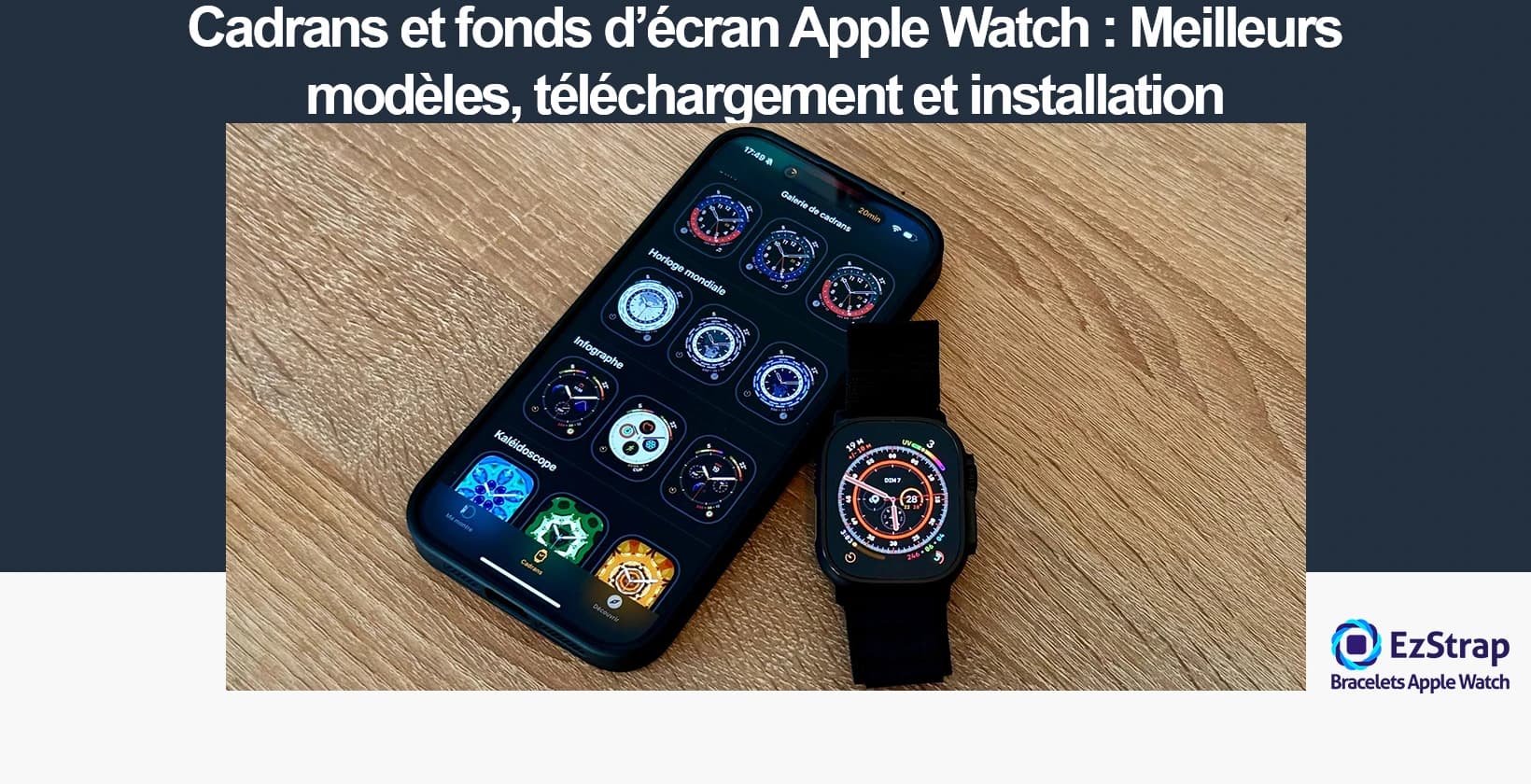
An Apple Watch face is the main graphical interface that displays the time and various information on the screen of the Apple Watch smartwatch. In everyday language, users often use the term Apple Watch wallpaper to refer to this face.
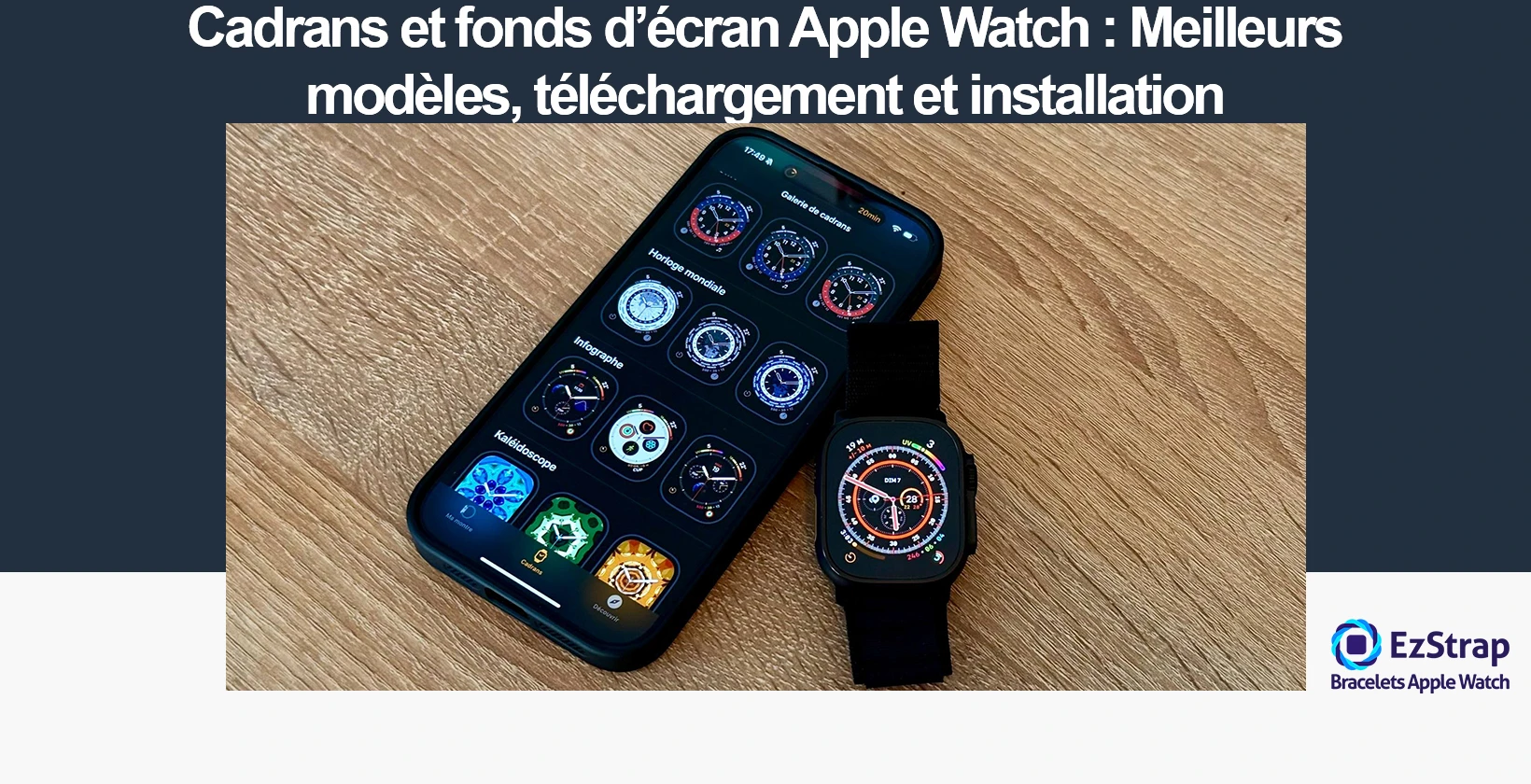
This complete guide to Apple Watch faces and wallpapers describes precisely three essential steps: finding the best Apple Watch face designs, how and where to download them, and how to install and change them.
Each section of this guide sets out the method for carrying out these three actions, whether you want to use official designs or explore original creations from the Apple Watch community.
Quick access: Choose a face · Download · Install · Troubleshoot
Which face for your watch and the way you use it?
Tick your watch and the complications you want to see on your wrist: the tool keeps only the faces that have enough slots, and the diagram shows you where each piece of information sits.
What are the best faces for Apple Watch Ultra?
The best faces for Apple Watch Ultra are those that make full use of its exclusive features and its complications dedicated to outdoor activities. Here is a detailed comparison of the 5 best faces for Apple Watch Ultra, with explanations:
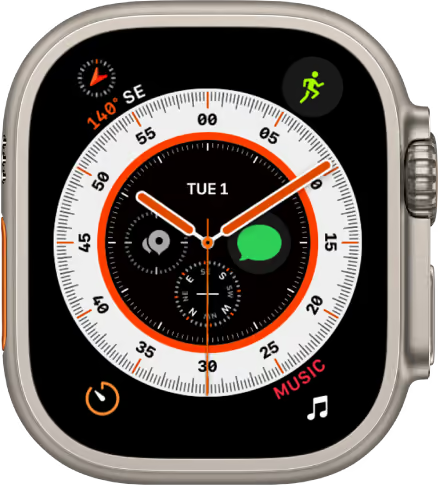
Wayfinder
The Wayfinder face is the flagship face designed specifically for the Apple Watch Ultra. The Wayfinder face offers a circular display optimised for exploration and adventure, incorporating exclusive complications such as the compass, GPS waypoints, elevation, incline, and the depth complication for diving. Night mode preserves your night vision, an asset for night-time hikes or expeditions. This face is ideal for all outdoor activities, as it displays essential information about your surroundings and navigation in real time.
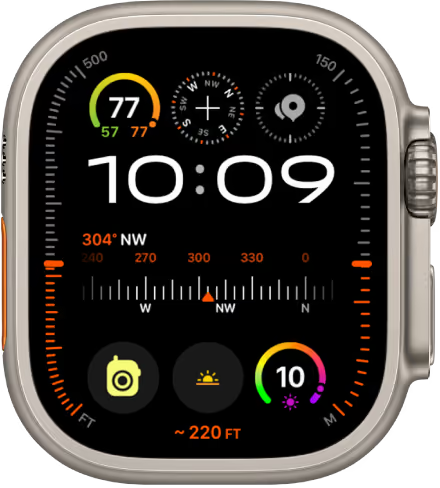
Modular Ultra
The Modular Ultra face is the most customisable face dedicated to the Apple Watch Ultra. It offers up to 7 complications, cleverly laid out, including the ability to display rate of ascent, altitude and water temperature (depth) at the same time, as well as training load and health statistics thanks to third-party or native apps. Modular Ultra makes the most of the space and lets you adapt every part of the face to the user's needs, which makes it the ideal choice for demanding athletes and explorers.
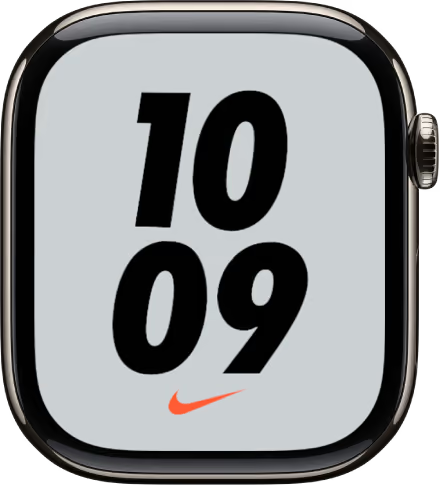
Nike Hybrid
The Nike Hybrid face, now available on the Ultra range, offers a very legible and modern display. The Nike Hybrid face stands out for its integration of the Nike Run Club complication, quick access to physical activity, and its display of the activity rings, weather conditions and battery life. Its strong contrast and its customisation make it an asset for runners and outdoor athletes.
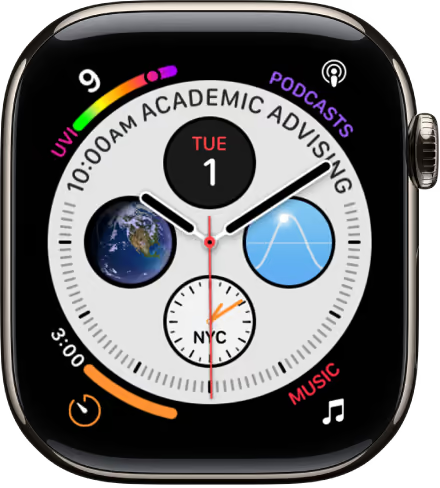
Infograph
The Infograph face is known for its ability to display up to 8 complications. The Infograph face suits the Apple Watch Ultra perfectly because it lets you track all your vital data at the same time: heart rate, weather, UV, compass, alarms and notifications. It is ideal for adventurers who need full oversight of their settings during outdoor activities, while remaining configurable for personal needs.
Clockology or Facer (custom faces)
Custom faces made through third-party apps such as Clockology or Facer make it possible to install faces inspired by other major brands (Rolex, Casio, etc.), but above all to add specific widgets such as topographic maps, advanced weather indicators or personalised statistics linked to outdoor activity. These faces are very popular with users who want a unique touch or a specific piece of information right on their wrist.
Every face in this selection makes use of the Apple Watch Ultra's extended capabilities for navigation, safety and performance in the wild. They offer exclusive complications and perfect adaptability to every situation for hiking, diving and trail enthusiasts, or simply for users who want to get the best out of the large screen and advanced sensors of the Apple Watch Ultra.
What are the best faces for Apple Watch SE?
The best faces for Apple Watch SE are those that maximise customisation and quick access to your essential information, notably for activity tracking, health, and everyday versatility. Here is the comparative list of the 5 faces best suited to the Apple Watch SE, with explanations:
Infograph
The Infograph face is a benchmark choice for the Apple Watch SE. The Infograph face can display up to 8 complications, which is ideal for keeping an eye on various data such as heart rate, weather, activity rings, reminders and battery. Its modular structure suits perfectly those who want to have everything in view at a single glance, which makes it ideal for active users and professionals.
Modular
The Modular face is the clearest and most versatile solution for the Apple Watch SE. The Modular face offers a central digital display and up to 5 complications, giving maximum visibility of weather, calendar, alerts, fitness tracking and heart rate. It is particularly useful for personalising the essential data to your daily needs: sport, health or productivity.
Chronograph Pro
The Chronograph Pro face is recommended for Apple Watch SE users who want to time their activities precisely. Chronograph Pro includes several counters, a tachymeter, and up to 4 complications for health, activity or GPS navigation. This face is ideal for tracking sport sessions and runs, or for organising interval sessions thanks to its large stopwatch.
California
The California face is perfect for those looking for an elegant style that suits work and leisure alike. The California face offers a classic analogue format that keeps two complications (in full-screen mode) or four (in circular mode), such as the date, weather or activity. This face appeals through its balance between refinement and practical features, while offering an understated display for everyday use.
Custom faces via Facer or Clockology
Custom faces made with Facer or Clockology let you go much further in personalising the Apple Watch SE. These apps offer thousands of designs created by the community, including the ability to add images, advanced weather widgets, sleep tracking or even animated backgrounds. Users can thus adapt the look completely to their tastes or favourite activities, which makes the watch unique and compatible with every lifestyle.
Every face presented here suits the Apple Watch SE particularly well which, although it lacks some of the Ultra's exclusive complications (compass, depth, Wayfinder), offers a very wide choice of tools for everyday performance, health, fitness and aesthetic personalisation. These designs are therefore optimised for the smoothest and most effective user experience possible on the Apple Watch SE.
What are the best faces for Apple Watch Series (1 to 10)?
The best faces for Apple Watch Series 1 to 10 are selected for their optimal compatibility with the technical capabilities, their display suited to the smaller screens of the older series, and the needs of outdoor or everyday activities. Here is a list of the 5 best faces, with their specific added value for these watches and their suitability for outdoor activities:
Infograph
The Infograph face is ideal for Apple Watch Series 1 to 10 because it offers a maximum of 8 complications on a single screen, allowing complete tracking of essential data such as weather, heart rate, activity rings, calendar, and compass. Its modular design suits particularly well users who want a display rich in information for their outings outdoors or their sport.
Modular
The Modular face is perfect for these series thanks to its simplicity and its ability to show up to 5 complications in a clear, legible format. It gives quick access to real-time data such as weather, altitude, or notifications, making it easier to manage outdoor activities without excessive complexity.
Chronograph Pro
Chronograph Pro is recommended for users focused on time measurement and sporting performance. It includes several counters, a tachymeter, and supports up to 4 complications, which is well suited to tracking running, hiking or cycling sessions on Apple Watch Series 1 to 10.
California
The California face brings a classic and elegant style while remaining functional with 2 to 4 complications depending on the mode chosen. This face suits those who want a more understated display for their outdoor activities with a polished design, usable both for everyday life and for moderate adventures.
Custom faces via Facer or Clockology
Finally, custom faces developed through third-party apps such as Facer or Clockology are highly sought after for Series 1 to 10. They offer great flexibility for adding specific information such as maps, advanced weather tracking, or health indicators, adapted to the needs of each user during outdoor activity, with optimised compatibility even on older models.
All these faces make the best possible use of the technical capabilities of Apple Watch Series 1 to 10, while offering complications that are useful for navigation, fitness tracking, and adaptability to a variety of outdoor activities. They offer a good balance between legibility, personalisation and functionality suited to the limitations of older models.
What are the best faces for sport?
A good sport face for Apple Watch is characterised by excellent legibility in the middle of activity, quick access to exercise data (heart rate, activity rings, workout duration) and complications optimised for real-time tracking. Here are the 5 best faces for sport, with their key features and complications:
Activity
The Activity face clearly shows the rings (calories, exercise minutes, stand time) and offers useful complications such as heart rate, the timer and direct access to the current workout for instant control of the session.
Nike Hybrid
The Nike Hybrid face offers high contrast for easy reading outdoors and includes complications dedicated to running (Nike Run Club), the activity rings, the weather and heart rate. It suits intensive training and outdoor activities.
Infograph
The Infograph face can display up to 8 complications to track heart rate, GPS, altitude, compass, weather and other sports data at the same time. It works as a complete dashboard in a single view.
Chronograph Pro
The Chronograph Pro face is aimed at athletes who time their efforts precisely: several counters, a tachymeter, and up to 4 complications for running time, intervals, speed, compass or GPS.
Custom faces via Facer or Clockology
Custom faces (Facer, Clockology) allow extensive personalisation: heart rate, temperature, topographic maps, advanced performance metrics, for tailored sport tracking and a unique experience.
These faces optimise legibility, speed of access and the richness of sports information, making the watch effective for running, hiking, cycling or indoor training.
To explore this subject in greater depth, you can read our complete guide, which takes stock of the best Apple Watch faces for sport.
What are the best faces for monitoring your health?
A good health face on Apple Watch includes complications dedicated to vital data (ECG, blood oxygen, menstrual cycle, medications) for quick access and continuous, personalised tracking. Here are the 5 best faces, with the recommended configuration:
Infograph
Displays up to 8 complications to create a complete health dashboard: ECG, Blood Oxygen, Cycle Tracking, Medications, heart rate, sleep, reminders. The modular structure places each complication at the most visible point.
Modular
Shows up to 5 complications in a clear layout: ECG, Blood Oxygen, Cycle, Reminders/Medications, heart rate. Immediate reading of alerts and health metrics throughout the day.
Activity Analog
Combines a legible analogue display with health complications visible at a glance: ECG, Blood Oxygen, Medications, heart rate. Suits discreet and functional tracking.
California
Offers 2 to 4 complications depending on the mode (full-screen or circular): ECG, Cycle, Medications, heart rate. A balance between classic aesthetics and essential health functions.
Custom faces via Facer or Clockology
Allow you to add specialised health widgets: ECG, SpO₂, Cycle, Medications, sleep. Extensive personalisation to adapt the display to the user's health routine.
Setting up the key complications
ECG (Electrocardiogram)
Add the ECG complication to start a measurement immediately and access atrial fibrillation detection. On some faces, the icon may be discreet but the touch area remains active.
Blood oxygen (SpO₂)
Use the Oxygen complication to monitor the level in real time or as a spot measurement, useful during drops linked to exertion or sleep.
Menstrual cycle tracking
Place the Cycle Tracking complication to log periods, estimate fertile windows and track symptoms, with a concise display.
Treatments / Medications
Enable the Medications complication to display reminders, confirm that a dose has been taken and view the history directly from the face.
These faces optimise the display and interactivity of health data across several Apple Watch models compatible with the latest versions of watchOS, in order to offer simple, intuitive and effective daily tracking.
What are the best faces for productivity (work, calendar)?
A good productivity face on Apple Watch acts as a professional dashboard, giving direct access to key information such as the calendar, reminders and time zones. Here are the 5 best faces suited to work, with recommendations:
Infograph
The Infograph face displays up to 8 complications at the same time. It is advisable to include Calendar (upcoming events), Reminders (tasks to do) and Time Zones (international meetings). This configuration makes it a complete and functional dashboard.
Modular
The Modular face offers a central digital display and 5 clear complications. It lets you add Calendar, Reminders and multiple Time Zones. Its legibility makes it easy to reach the essential data quickly without visual overload.
Modular Compact
The Modular Compact face combines optimised space with understatement. Its reduced complications efficiently display Calendar, Reminders and Time Zones. It is aimed at professional environments that value discretion and clarity.
Metropolitan
The Metropolitan face offers four complication slots in the corners, in a typeface that tightens when you lower your wrist. It takes Calendar, Reminders, Timer and the date without ever looking cluttered, which makes it the understated choice par excellence in a professional environment.
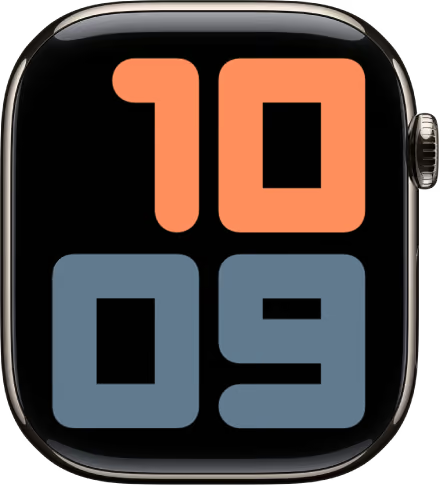
Worth noting: the Numerals Duo and Numerals Mono faces, often cited for productivity, accept no complications at all — Apple provides no slot on them. They are beautiful, but unusable as a dashboard.
Custom faces via Facer or Clockology
The Facer and Clockology apps offer faces that can be configured for professional use. They let you add advanced Calendar, Reminders and multiple Time Zones widgets, in designs made for legibility and efficiency.
Setting up the productivity complications
Calendar
Display the date and upcoming events for an immediate overview of your work schedule.
Reminders
Receive real-time notifications of tasks to complete and manage your priority list directly from the face.
Time zones
Follow several world times simultaneously to coordinate international meetings and exchanges easily.
These faces turn the Apple Watch into a compact, always-accessible office assistant, supporting time management and focus on what matters, with an immediate overview of appointments, reminders and key time zones.
What are the most elegant minimalist faces?
An elegant minimalist face is defined by a clean design, few or no visible complications, muted colours and immediate legibility of the time, for a refined look suited to both professional and casual settings.
California
A design inspired by classic watches with Roman and Arabic numerals. Offers full-screen or circular layouts and many colour and typeface options. For a minimal look, limit it to 2–3 discreet complications (date, alarm) and choose muted shades (black, white, dark blue).
Simple
A clear display with clean hands and markings. Colours and the style of the hands and numerals can be customised. Corner complications are possible (battery, calendar) to keep the essentials without disturbing the elegance.
Numerals Duo / Mono
A display centred on one large numeral for the time, with no complications possible: Apple provides no slot on these two faces. A modern, legible typeface, to put the time first and nothing else.
Solar Analog
A simple yet sophisticated look thanks to plays of light tied to the position of the sun. A dynamic but discreet rendering, suited to fans of a living minimalism.
Meridian
A clean, balanced design with symmetrically placed complications. Broad control over colours and styles for a restrained, chic look.
Personalisation tips for an elegant, minimalist style
- Limit the complications: keep only the essentials (date, battery, activity).
- Choose neutral colours: black, white, navy blue, dark grey.
- Favour simple typefaces: classic or rounded to strengthen legibility.
- Vary hands and numerals with restraint: on California, mix Roman and Arabic numerals sparingly.
- Adapt the display mode: full-screen for a clean look, circular if extra complications are needed.
These faces offer a refined and functional visual experience, without clutter, while allowing intuitive personalisation to bring out a restrained, classic style.
What are the new Apple Watch faces?
The new Apple Watch faces in 2025 stand out for innovative designs, greater personalisation and features suited to watchOS 26. Here is a selection of recent and notable faces, with their main characteristics:
Modular Ultra
The flagship face of the Apple Watch Ultra, it offers up to 7 complications and a Night mode to preserve night vision, and showcases data such as the compass, depth and elevation, ideal for adventurers.
Photos (Photos Dynamic)
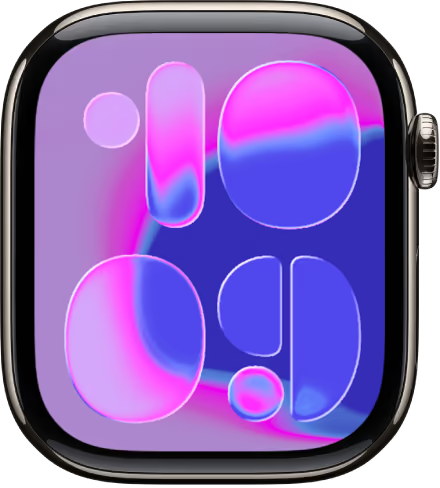
A new version with a Liquid Glass design, a lively and dynamic display of your favourite images. Users can choose featured photos and watch them scroll past each time the screen wakes, for a personalised result.
Flux
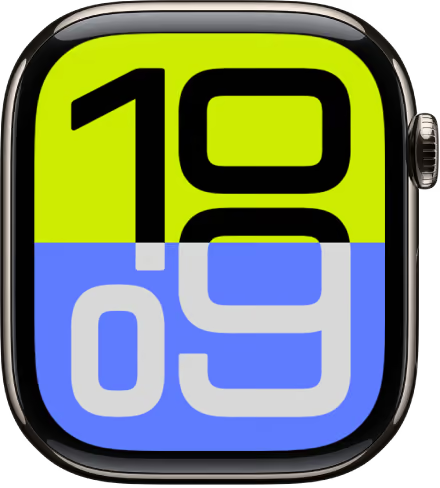
A modern digital display with customisable numerals, styles and dynamic colours that change with the time of day, for a contemporary and functional look.
Reflections
A new analogue face with subtle effects of light and shadow that evolve throughout the day. It combines understated elegance with stronger legibility.
Exactograph
A new watchOS 26 face, the Exactograph separates hours, minutes and seconds across three distinct dials for precise reading. Touching the face magnifies each sub-dial five times, revealing finer graduations. It accepts four complications in the corners.
Unity Rhythm
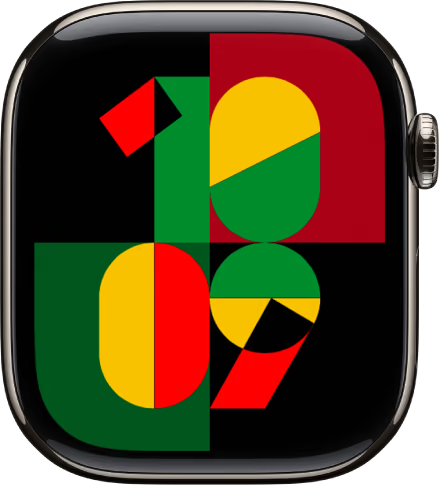
Launched in 2025 in the Black Unity collection, this face celebrates Black history and culture with a vibrant design and options for customising colours and complications.
Enhanced Analog Faces for Series 10
Thanks to the Series 10's advanced display, certain analogue faces (California, Utility, Activity Analog, Meridian) now show a permanent seconds hand in Always-On mode.
Smart Stack (Liquid Glass Design)
Although not considered a face, Smart Stack adopts a Liquid Glass design and becomes more interactive, showing smart suggestions directly on certain faces.
With watchOS 26, several less popular faces (Fire/Water, Gradient, Liquid Metal, Vapor, Toy Story) have been removed, while the remaining faces benefit from improved visual effects and better organisation in the gallery.
These new features bring stronger personalisation, a modernised look and smoother integration with health, sport and connectivity functions, offering a richer, up-to-date Apple Watch experience.
So the most recent faces showcase both the advanced technology of current models and users' personal style, making the Apple Watch a more customisable and effective companion in 2025. If you want to get a new Apple Watch to have the latest faces, you can read our complete Apple Watch buying guide.
What are the best free and paid third-party apps for finding new faces?
Apple does not allow external faces to be installed directly outside its official ecosystem. However, several third-party apps offer the creation, personalisation and sharing of faces, thereby widening the aesthetic and functional options. Here are the best third-party apps available in 2025, with how they work and their pricing model:
Facer
The leading platform, offering thousands of original designs created by designers and the community. It includes custom complications and HealthKit to display health data. The web editor allows intuitive and advanced design.
Pricing model: free with many options; premium subscription from $4.99/month or $39.99/year to unlock more faces and features.
Clockology
A very popular app offering a large collection of faces, including designs inspired by major brands. It works as an overlay, with a limited duration (about an hour) before returning to the official face.
Pricing model: free version; premium subscription at around $1.99/month for advanced features and exclusive faces.
WatchMaker
A rich library and a detailed editor for designing your own faces, with real-time display of health data via HealthKit. Suits users looking for extensive personalisation.
Pricing model: one-off purchase or annual subscription of around $30 to access all features.
Buddywatch
A varied catalogue of trendy, customisable faces, with Buddy AI, which suggests faces suited to your preferences or to your outfit of the day.
Pricing model: limited free features; premium subscriptions between $3/week and $10/year to access exclusive creations.
Watch Faces Albums & Widgets
An app offering evolving faces with advanced widget integration (weather, activity, battery). Includes free trials to discover the premium faces.
Pricing model: free with paid premium packs available.
These solutions do not let you "download" faces directly in the strict sense, but they offer powerful tools for creation and synchronisation. They considerably widen the aesthetic and functional choices for the Apple Watch.
In practice, Facer and Clockology remain the essential platforms, combining rich catalogues with intuitive editors, and mixing free designs with premium options to suit every budget.
Where can you download the Nike, Rolex or Hermès faces?
The Nike and Hermès faces are exclusive faces, available only on Apple Watch models sold with these special editions. They cannot be legally downloaded outside these configurations. However, the community offers unofficial recreations accessible through third-party apps.
Nike and Hermès faces
These faces are reserved for the Apple Watch Nike and Hermès. They are not available separately, but some developers reproduce their design in third-party apps. These versions imitate the official style, without however offering all the native features.
Rolex faces
Apple does not offer any official Rolex faces. The Rolex designs available are solely community creations, inspired by the brand's watchmaking design. They are accessible through apps such as Clockology.
Third-party apps (Clockology)
Clockology lets you install custom faces, including versions inspired by brands such as Rolex, Hermès or Nike. It works by having an active app that displays the custom face, with certain limits (for example, the need to reactivate the app regularly).
In summary:
- Nike and Hermès: exclusive to the corresponding official Apple Watch editions, available only through the watch you buy.
- Rolex: only as an unofficial version, through community creations on Clockology.
These third-party solutions often rely on a freemium model: some free options and others available by subscription. They do not replace the native faces supplied by Apple but offer a creative alternative for personalising the Apple Watch.
Where can you download the Disney Mickey, Minnie and Toy Story faces?
The Mickey, Minnie and Toy Story faces are official faces already included in watchOS, the Apple Watch operating system. They require no external download and can be found directly in the face gallery of the Watch app on iPhone.
How do you add a Disney face to the Apple Watch?
- Open the Watch app on your iPhone.
- Go to the Face Gallery.
- Search for Mickey Mouse, Minnie Mouse or Toy Story.
- Select the face you want, and customise the colours and complications.
- Tap Add to sync it with your watch.
The Mickey and Minnie faces include an audio feature: when you touch the screen, the characters "say" the time. The Toy Story faces offer several animations with Woody, Buzz, Jessie and other characters who come to life each time the screen wakes.
A tip for adding other Disney characters
For Disney characters that are not officially available, you can use the Photos face. Download a Disney image, save it in the Photos app on your iPhone, then create a Photos face from the face gallery of the Watch app, choosing this image as the background. That way you keep some complications while personalising the background with the image of your choice.
How do you change, add and delete a face?
Changing, adding and deleting a face on the Apple Watch is easy, using two main methods: directly from the watch or from the Watch app on your iPhone. Here are the key steps for each action:
Changing a face
From the Apple Watch
- Press and hold the current face until it shrinks.
- Swipe left or right to browse the faces you have already added.
- Tap the face you want to display.
Tip: You can also turn on "Swipe to Switch Faces" in Settings > Clock so that you can simply move from one face to another with a sideways swipe.
From the Watch app on iPhone
- Open the Watch app.
- Tap the Face Gallery tab at the bottom.
- Browse the gallery and select a face.
- Customise it if you wish (colours, complications).
- Tap Add: the face is added to your collection and becomes active on your watch.
Adding a new face
From the Apple Watch
- Press and hold the screen of the current face.
- Swipe all the way to the left until you see a "+" button.
- Tap "+" to open the selection of available faces.
- Use the Digital Crown or swipe to browse the options.
- Select a face, then customise it and confirm.
From the iPhone
- In the Watch app, open the Face Gallery.
- Choose a face to add.
- Customise it with the available options.
- Tap Add: it is added to the Apple Watch automatically.
Deleting a face
From the Apple Watch
- Press and hold the current face.
- Swipe to select the face you want to delete.
- Swipe up on the chosen face.
- Tap Delete or Remove to erase it.
From the iPhone
- In the Watch app, go to the My Faces tab.
- Tap Edit.
- Touch the red "–" button next to the face you want to delete.
- Confirm by tapping Delete or Remove.
The face is then deleted from your Apple Watch.
These procedures let you manage your faces perfectly, to quickly adapt the display of your Apple Watch to your needs, your tastes or your activities, whether directly on the watch or via the companion app on iPhone.
How do I change the colours, style and complications?
The Edit function on Apple Watch lets you easily personalise watch faces by changing the colours, styles and complications to suit your preferences. This is done directly on the watch, by pressing and holding the watch face currently displayed.
Here are the key steps to change the colours, style and complications of an Apple Watch face:
1. Enter edit mode
- Press firmly and hold the current watch face until it shrinks and personalisation mode appears.
- Then tap the Edit button.
2. Change the style and colour
- Swipe left to reach the first option, which lets you change the style of the face (type of numerals, shape of the display, time scale, depending on the face).
- Scroll through the different style options with the Digital Crown.
- Swipe left again to reach the colour options.
- Browse the colour palettes with the Digital Crown to change the tint of the numerals, hands, background or other elements, depending on the face.
3. Set up the complications
- Swipe left once more to reach the complication areas (weather, activity, calendar, heart rate, etc.).
- Select each complication slot with a tap.
- Choose a complication from those supported by this face using the Digital Crown.
- Turn off a complication by selecting the "Off" option (at the very top of the list) if you do not want anything displayed in that spot.
4. Finish personalising
- Press the Digital Crown to save the changes.
- Tap the screen or press the side button to exit personalisation mode.
- See your personalised face with the new colours, the chosen style and the configured complications.
This method is intuitive and offers great flexibility to adapt your watch face to your style and to your need for information at a glance. You can also make these changes through the Watch app on iPhone, in the Face Gallery tab, with a larger interface and a real-time preview.
In summary, the Edit function, reached by pressing and holding the Apple Watch face, lets you quickly and simply change:
- The style (shapes, fonts, displays specific to each face),
- The colour (a choice of several palettes depending on the face),
- The complications (selection and placement of useful information widgets).
This personalisation is the key to making your Apple Watch truly your own and useful every day.
How do I share a watch face with my contacts?
Sharing an Apple Watch face with your contacts is a feature built into watchOS that lets you easily send a personalised watch face configuration, including its complications, directly from the watch or from the Watch app on iPhone.
How to share an Apple Watch face
From the Apple Watch
- Display the watch face you want to share.
- Press and hold the face until the Edit and Share options appear.
- Tap the Share icon (a square with an arrow pointing up).
- Select Add Contact to choose the recipient from your contacts list, or use voice dictation to search for them.
- Optionally personalise the accompanying message with a text message, Scribble or emoji.
- Send the face; it will be transmitted via Messages, Mail or other available sharing options.
From the iPhone with the Watch app
- Open the Watch app.
- In the My Faces tab or the Face Gallery, select the face you want to share.
- Tap the Share icon at the top right.
- Choose the sharing method (Messages, Mail, AirDrop, etc.).
- Select the contact and send the face.
What is shared
- The complete face, with its visual settings (colours, styles).
- The complications built into the face, including those from third-party apps, if present.
- The layout configuration of the face's elements.
What is not shared
- Personal data linked to complications (for example, your actual heart rate, GPS locations, health history).
- The apps themselves: if the face uses complications from apps the recipient does not have, they will be prompted to download them from the App Store so that the complications work properly.
The recipient can then easily add the face they received to their collection with a simple tap on the link or in the Watch app.
Sharing a watch face lets you spread your personalised designs and easily benefit from optimal configurations, while keeping personal data private. It is a simple, quick and secure way to enrich the Apple Watch experience between users.
How do I set a photo as a wallpaper (Photos face)?
To set a photo as the wallpaper on your Apple Watch using the "Photos" face, here is a clear and complete step-by-step guide, carried out from the Watch app on iPhone:
Open the Watch app on iPhone
1. Open the Watch app
- Launch the Watch app that is paired with your Apple Watch.
2. Go to the face gallery
- Tap the Face Gallery tab at the bottom of the screen.
3. Select the "Photos" face
- Scroll through the gallery to the faces section and choose Photos.
4. Choose the photos to display
- Album: choose a photo album saved on your iPhone (for example "Favourites", "Recents" or a custom album). The face will display the photos from that album in rotation.
- Specific photos: select up to 24 individual photos to create a cycle of photos to display.
- Dynamic: display recent images or memories automatically, changing over time.
5. Personalise the face options
- Choose the position of the time (top or bottom).
- Select the style of the time (format, colour, font).
- Add up to two complications (widgets) to show extra information such as the weather or the battery.
6. Add the face to your collection
- Once the personalisation is finished, tap Add at the top of the screen. The face with your selected photos is then automatically synced to your Apple Watch.
7. Activate a photo directly (alternative option)
- Open an image in the Photos app on iPhone.
- Tap the Share button, then select Create Watch Face.
- Choose between the "Photos", "Portrait" or "Kaleidoscope" face.
- Tap Add to finish creating it.
8. Manage and edit the face on the watch
- Press and hold the Photos face on your Apple Watch, then turn the Digital Crown to scroll through the synced photos.
- Add, remove or change the synced album via the Watch app > Photos > Synced Album.
This process lets you effectively personalise your Apple Watch face with your favourite photos, making your watch unique and truly your own. Whether you prefer a single still photo or a slideshow of pictures, the "Photos" face is simple to set up from the iPhone and gives an elegant, dynamic look.
In summary, to set a photo as the wallpaper (Photos face) on Apple Watch you need to:
- Use the Watch app on iPhone, select the Photos face in the gallery, choose the album or photos to display, personalise the options and add the face, which will then automatically sync with the watch.
- Or create a face directly from a photo in the Photos app via the share menu and "Create Watch Face", then personalise and add it.
That way you can easily personalise your Apple Watch with your favourite memories as the wallpaper.
How do I permanently display my step count on my watch face?
To permanently display the step count on your Apple Watch face, you need to add an "Activity" complication to a spot on the face that supports complications. This complication does not directly show the exact number of steps, but it displays the activity rings (Move, Exercise, Stand) that reflect your overall progress.
To see the precise step count, you either need to tap the "Activity" complication to open the Fitness app, which details your steps, or use a specialised third-party app offering a dedicated step-counting complication. These apps, such as Pedometer++ or StepsApp, can show the step count in near real time on your face via their custom complication.
In summary:
- The native "Activity" complication shows the activity rings, which visually indicate your goals, but does not permanently show the exact step count.
- For a direct and permanent display of the step count, you need to download a third-party app offering a compatible complication to install on a customisable face (Modular, Infograph, Modular Compact, etc.).
- Once the app is installed, add its complication to your face by pressing and holding the face > Edit > selecting a complication area > choosing the steps app.
- The step count then displays permanently on your watch, with the accuracy and refresh rate depending on the app used.
So, permanently displaying the exact step count on your Apple Watch requires third-party software, as the native Activity complication only offers indicative activity rings and not the precise count.
What should I do if my watch face isn't updating or has disappeared?
If your Apple Watch face isn't updating or has disappeared, several common causes may be responsible. Here is a simple checklist of actions to take to solve the problem efficiently:
Restart the Apple Watch and iPhone
- Switch your Apple Watch and your iPhone off, then back on.
- It is advisable to switch the iPhone back on first, then the watch.
- This restart often resets the connection and fixes temporary bugs that prevent the faces from updating or displaying correctly.
Check for a watchOS update
- Make sure your Apple Watch and your iPhone are both up to date with the latest software versions.
- Updates frequently include bug fixes that can affect watch face syncing.
- You can check this directly in the Watch app > General > Software Update.
Check the sync settings in the Watch app
- Open the Watch app on your iPhone.
- Go to the "My Faces" tab and check that the face is listed.
- If the face is missing or seems not to sync, try deleting it and then adding it again from the Face Gallery.
- You can also use the Reset Sync Data option in General > Reset to force the content to resync between iPhone and Apple Watch.
These steps solve most problems with watch faces that no longer display or won't update. If the problem persists after these checks, you can consider unpairing and then re-pairing your Apple Watch with your iPhone, which lets you start again from a fresh configuration.
If that fails, contacting Apple Support or visiting an Apple Store remains an option for an in-depth diagnosis.
So, to restore a watch face that has disappeared or is stuck on your Apple Watch, you need to restart the devices, make sure the software is up to date, check and reset syncing via the Watch app, and, as a last resort, re-pair your watch. These simple solutions cover the majority of cases users come across.
How do I match my Apple Watch band to the watch face?
Matching an Apple Watch band with its watch face is a matter of visual coherence that rests on three main criteria: colour, style and use. Each of them helps to strengthen the aesthetic and functional harmony between the digital face and the physical accessory. To achieve a harmonious combination, here are the main points to consider:
Colour harmony
Colour harmony consists of pairing a band with the dominant shades of the face.
- A light face such as California goes with neutral tones (white, grey, beige).
- A dark face such as Modular shows off black or metallic bands.
- Strong contrasts create a modern effect, while close shades reinforce an understated look.
Adapting the visual style
Adapting the visual style means matching the graphic appearance of the face to the material and finish of the band.
- A colourful digital face such as Memoji pairs well with a fluoroelastomer sport band.
- A classic face such as Chronograph goes better with a leather or metal band.
- This coherence gives the impression of a unified watch rather than disjointed elements.
Taking everyday use into account
Everyday use is a practical factor that influences the choice of pairing.
- For sport, a performance-oriented face such as Activity gains legibility with a nylon or silicone band, which suits perspiration.
- For a professional meeting, a clean face such as Minimal gains elegance when paired with a leather band.
- Matching use, face and band improves the functional and aesthetic experience.
All in all, matching an Apple Watch band to a face comes down to a balance between colour, style and use, for a personalised watch that stays coherent on any occasion. To find out more on this subject, you can read our guide to finding the best Apple Watch band for you.